Welcome to Stone Mate: a digital notebook for writing mathematics. You do not need to know much about computers.
With Stone Mate you can:
write formulas with a few keys (fractions, roots, powers…)
add text (titles, explanations, bold…)
insert graphs, drawings, and sign charts
recognize formulas from a photo, a PDF, or a region of the screen
save, print, or export to Word and PDF
use the interface in Italian, English, French, or Spanish (or follow the system language)
Watch Stone Mate in 4:05
A tour of the program: you write the mathematics, and you do the steps yourself.
Chapter 1
Before you start
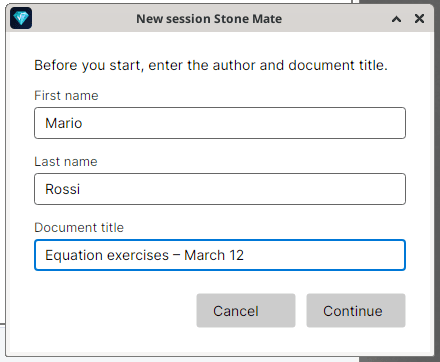
When you open a new piece of work, Stone Mate asks for:
your first name and last name
a document title (for example Equation exercises – 12 March)
Fill in the three fields and confirm: you are on a blank page, ready to write. The window opens full screen (maximized).
At startup Stone Mate asks for your name and a document title.
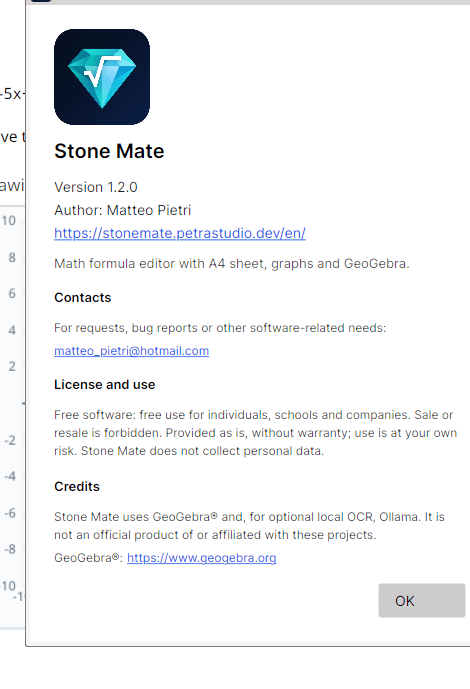
The first time you open the program, the About Stone Mate window also appears (version, contact, license, and a link to the site). It does not come back on its own after that: you will find it under Help → About Stone Mate….
The About Stone Mate window (Help → About Stone Mate…).
Tip: the title helps you find the file later, and it shows up in recent documents.
Chapter 2
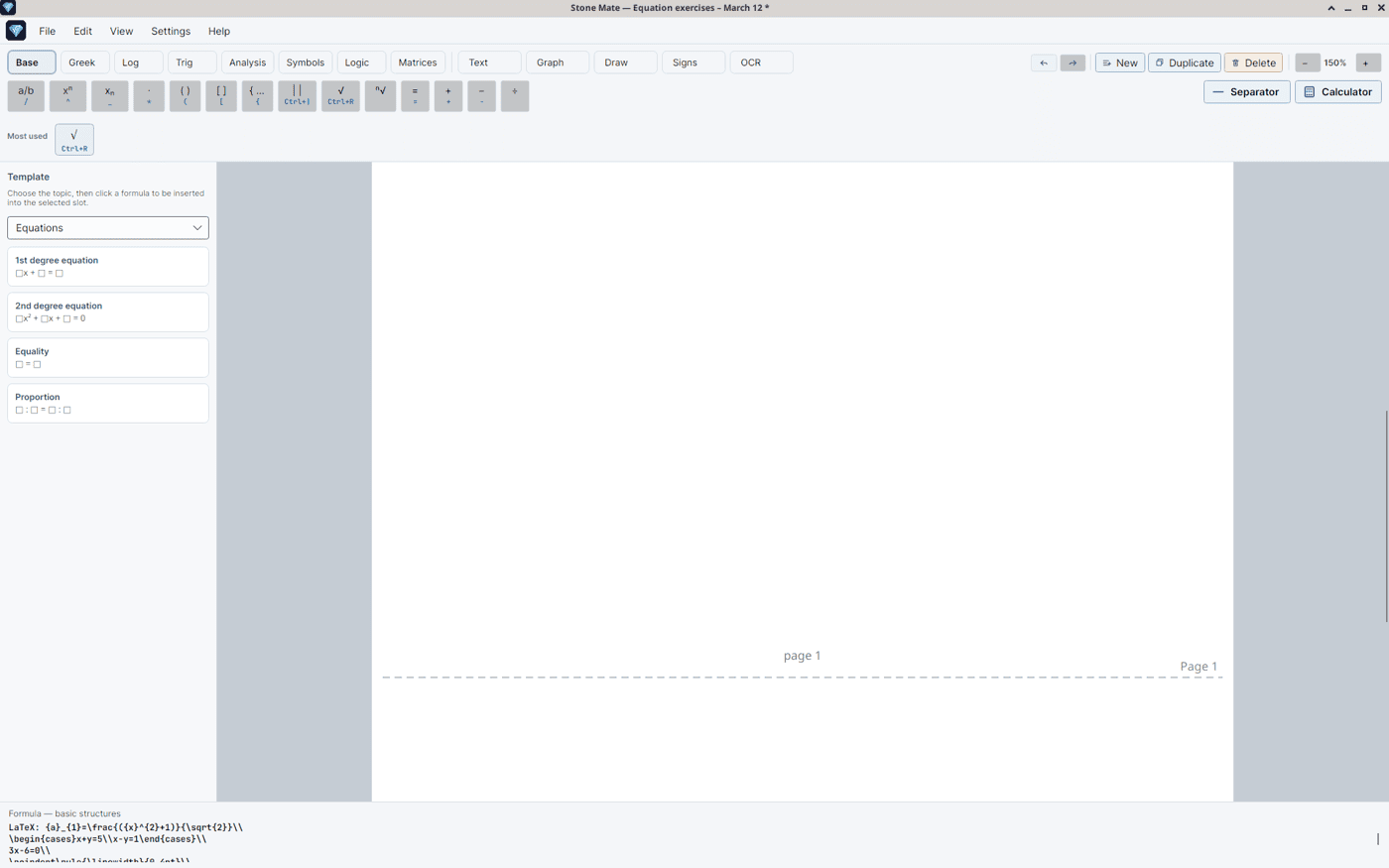
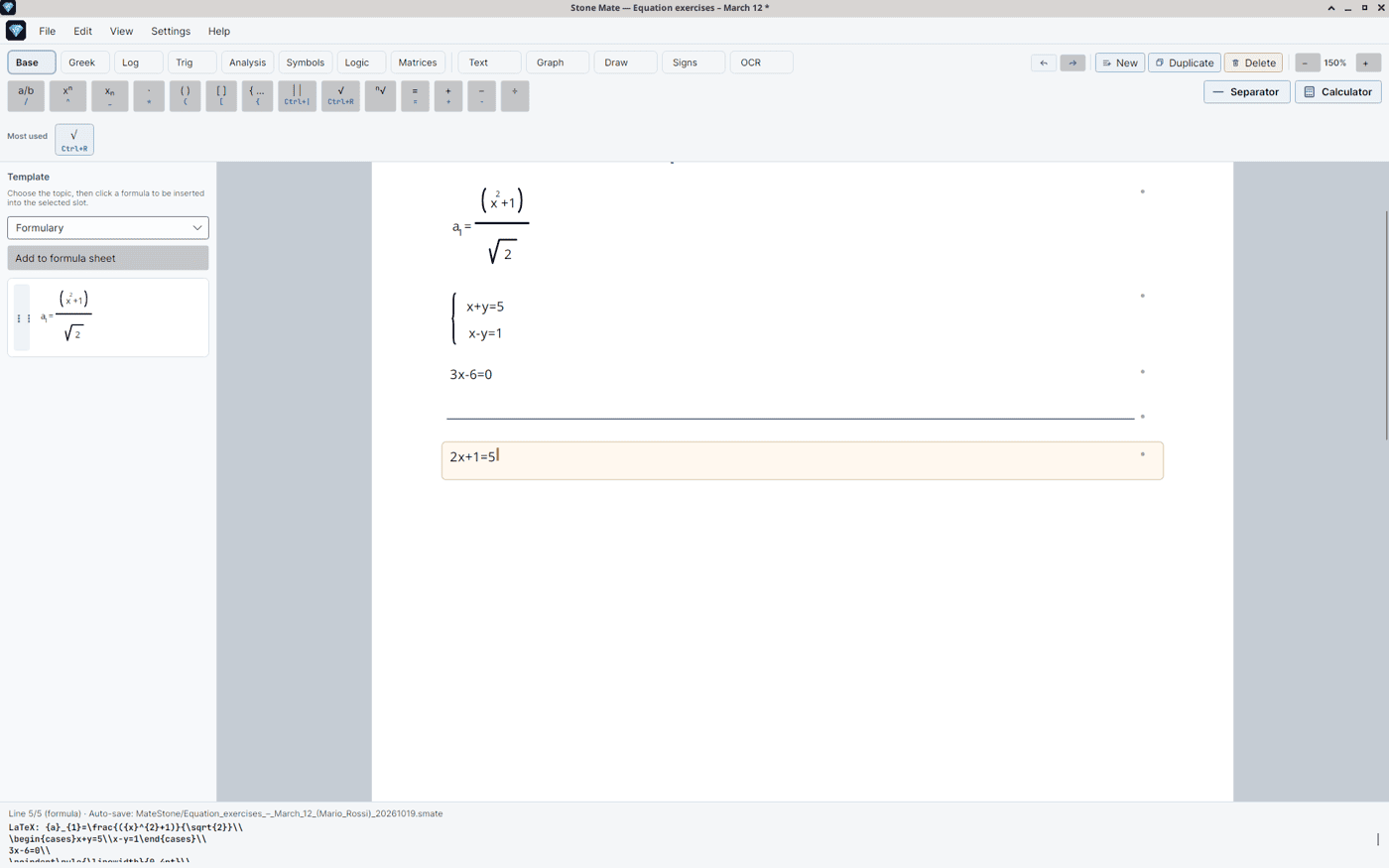
How the window is laid out
Think of a notebook open on the computer.
Where
What it is for
Top menu
File, Edit, View, Settings, Help
Bar under the menu
Choose what you want to do: formulas, text, graph, drawing, signs, recognition from an image
Left panel (Templates)
Formulas already set up, ready to click (equations, limits, systems…)
Page in the center
Where you write, as on paper
Right panel
Appears when you work on a graph, a drawing, or a sign chart
Bottom bar
Helpful messages, and a preview line of the formula
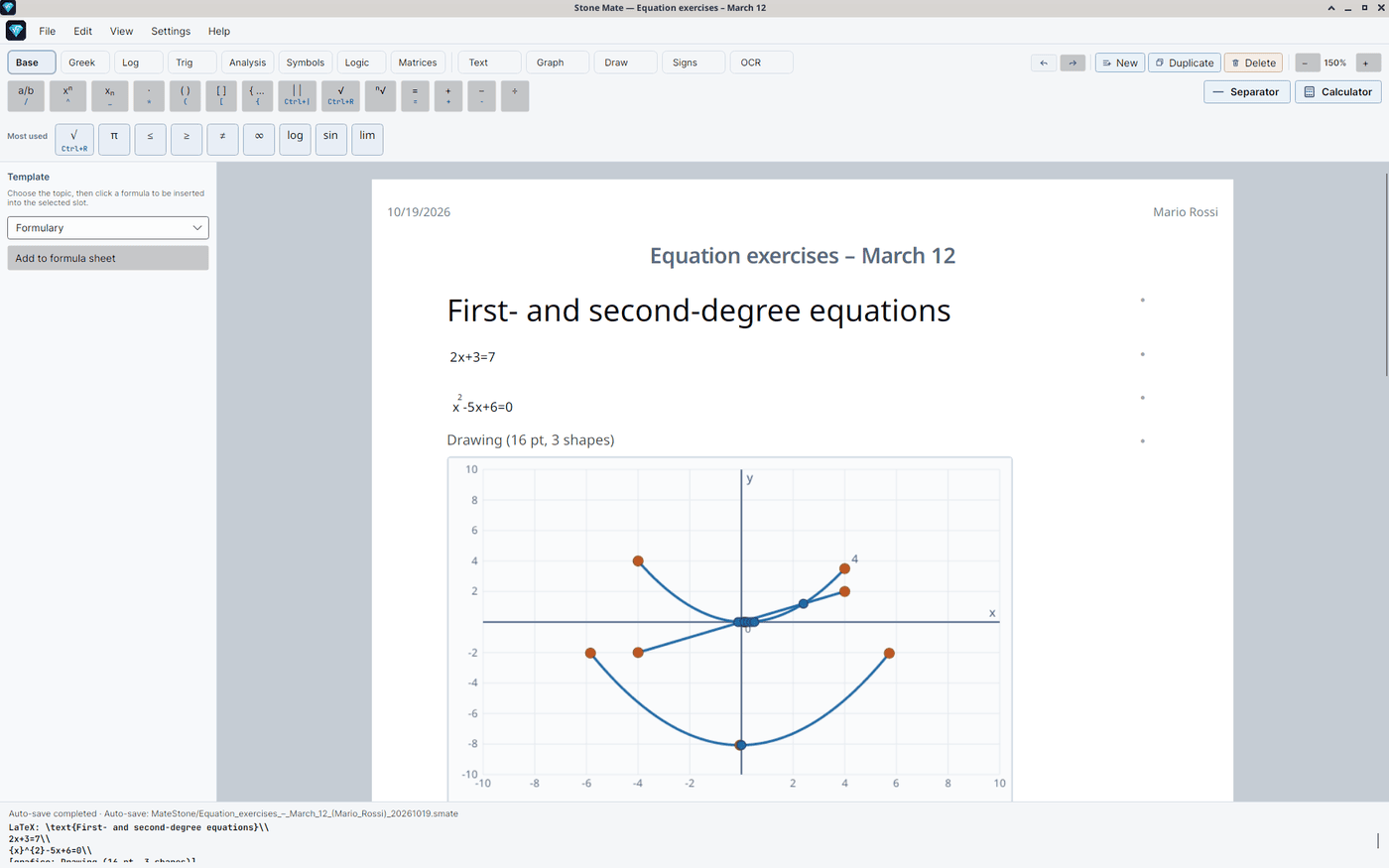
The main window: menu, tab bar, Most used row, Templates panel, A4 page, and the bar at the bottom.
At the bottom right (or next to the zoom) you can zoom in or zoom out on the page.
Chapter 3
Create, open, and save
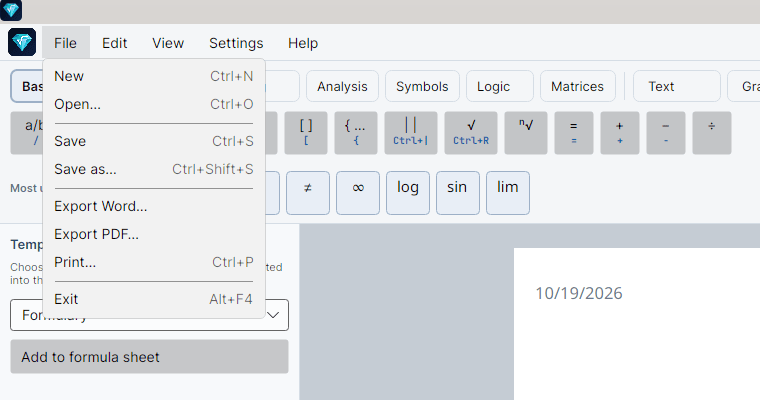
File menu
You want to…
Do this
Start from scratch
File → New (or Ctrl+N)
Reopen a piece of work
File → Open… (or Ctrl+O)
Reopen something recent
File → Recent documents
Save
File → Save (or Ctrl+S)
Save under another name
File → Save as…
Get a Word file
File → Export Word…
Get a PDF
File → Export PDF…
Print
File → Print… (or Ctrl+P)
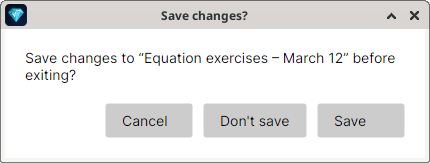
The File menu: new, open, recent documents, save, export to Word or PDF, print.If you close with unsaved changes, Stone Mate asks whether to save them.
File format
Stone Mate work is saved with the extension .smate. That is the “full” format: you can reopen the file and keep editing formulas and text.
Word and PDF are useful for handing work in or printing, but keep the .smate file if you want to continue working.
Organizing rows
You want to…
Do this
An empty formula line
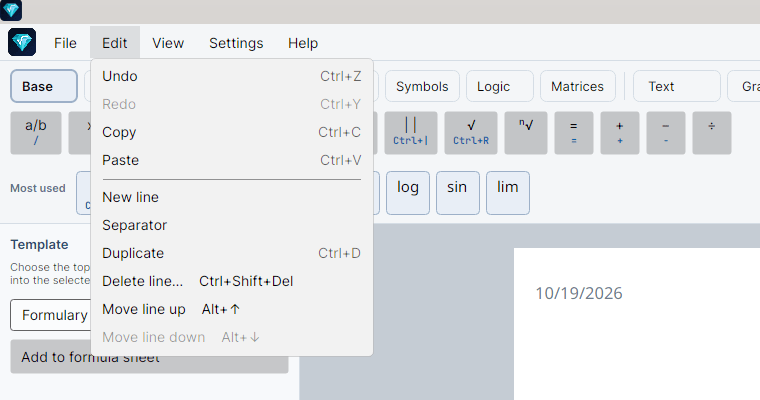
The New button (or Edit → New line)
Start a new line under a formula you already wrote
Press Enter: an empty row appears underneath. To copy the row, use Ctrl+D
Separate two exercises
Edit → Separator (a horizontal line; you can type a label on it)
Copy the current line
Ctrl+D
Delete the line
Ctrl+Shift+Delete (or the Edit menu)
Move the line up or down
Alt+↑ / Alt+↓
Undo / redo
Ctrl+Z / Ctrl+Y
The Edit menu: new row, separator, duplicate, delete, and move rows.A separator splits two exercises on the page.Enter on a formula you already wrote creates an empty row just below it. To copy the row, use Ctrl+D.Chapter 4
Writing a formula
Click a formula row (or create one with New).
Type letters and numbers as usual.
Use the special keys (or the buttons) for fractions, powers, roots…
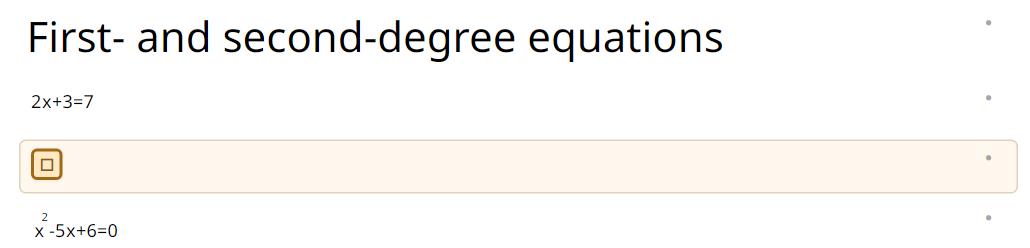
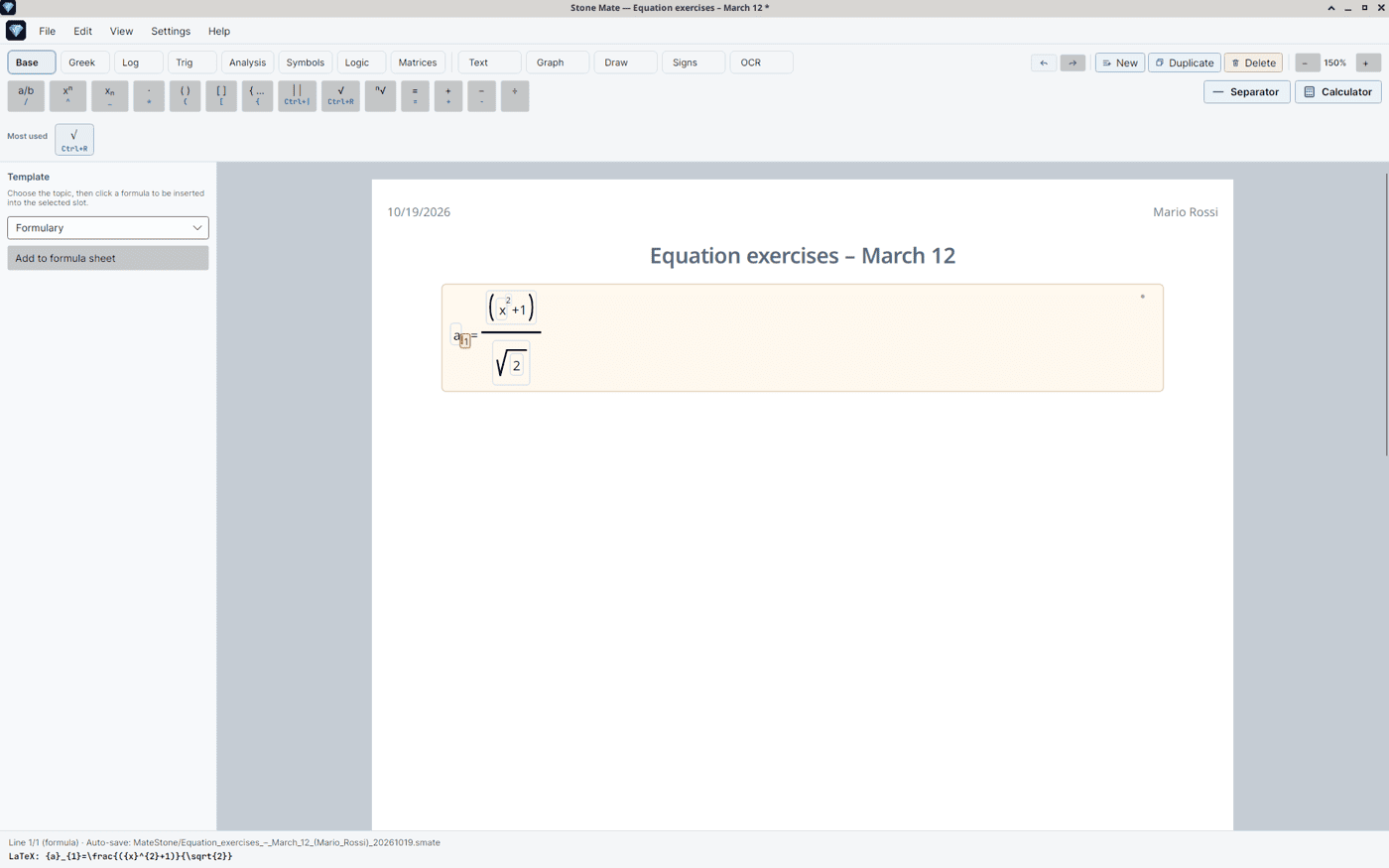
A formula being edited: the active slot is highlighted.
The keys you will use most
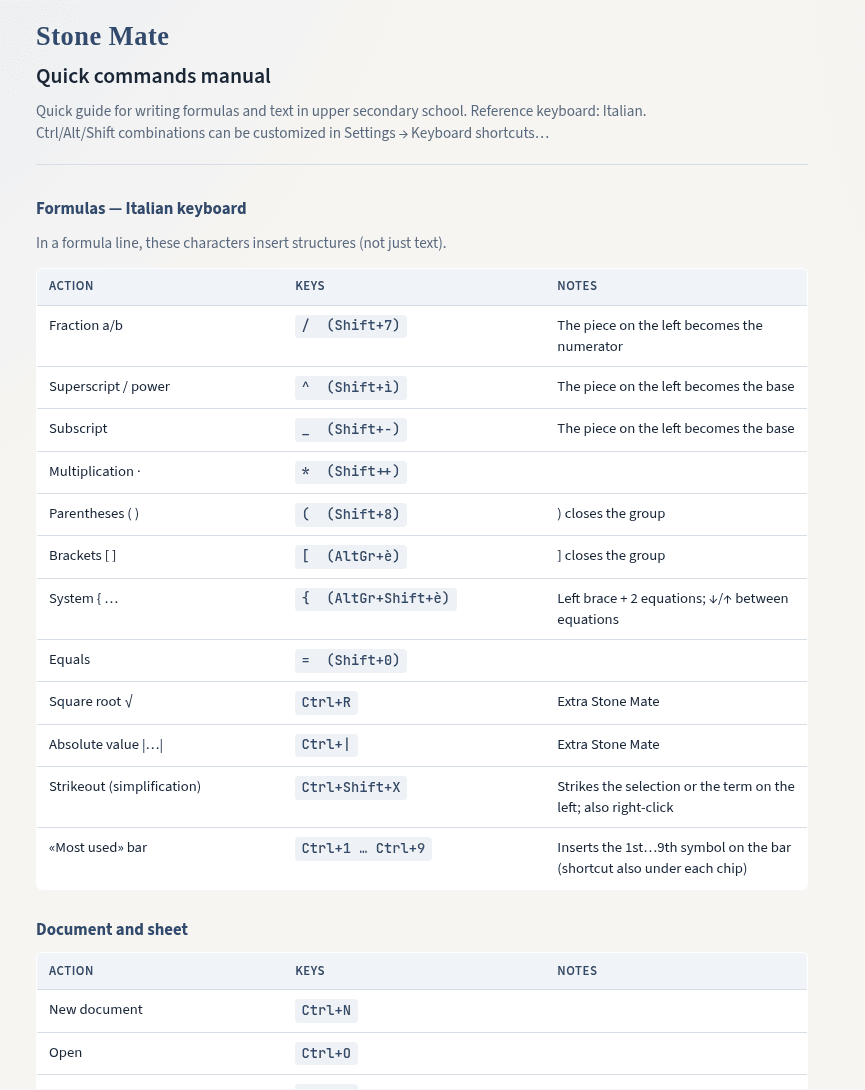
Stone Mate looks at the character, not at a fixed physical key. On a US keyboard the positions below are the usual ones. On an Italian keyboard, / is Shift+7 and ^ is Shift+ì.
To get…
Press
Example
A fraction
/
Type a, then /, then b → the fraction a/b
A superscript
^ (Shift+6 on a US keyboard)
Type x, then ^, then 2 → x²
A subscript
_ (Shift+-)
Type a, then _, then 1 → a₁
The × sign
*
Parentheses
( … )
Brackets
[ … ]
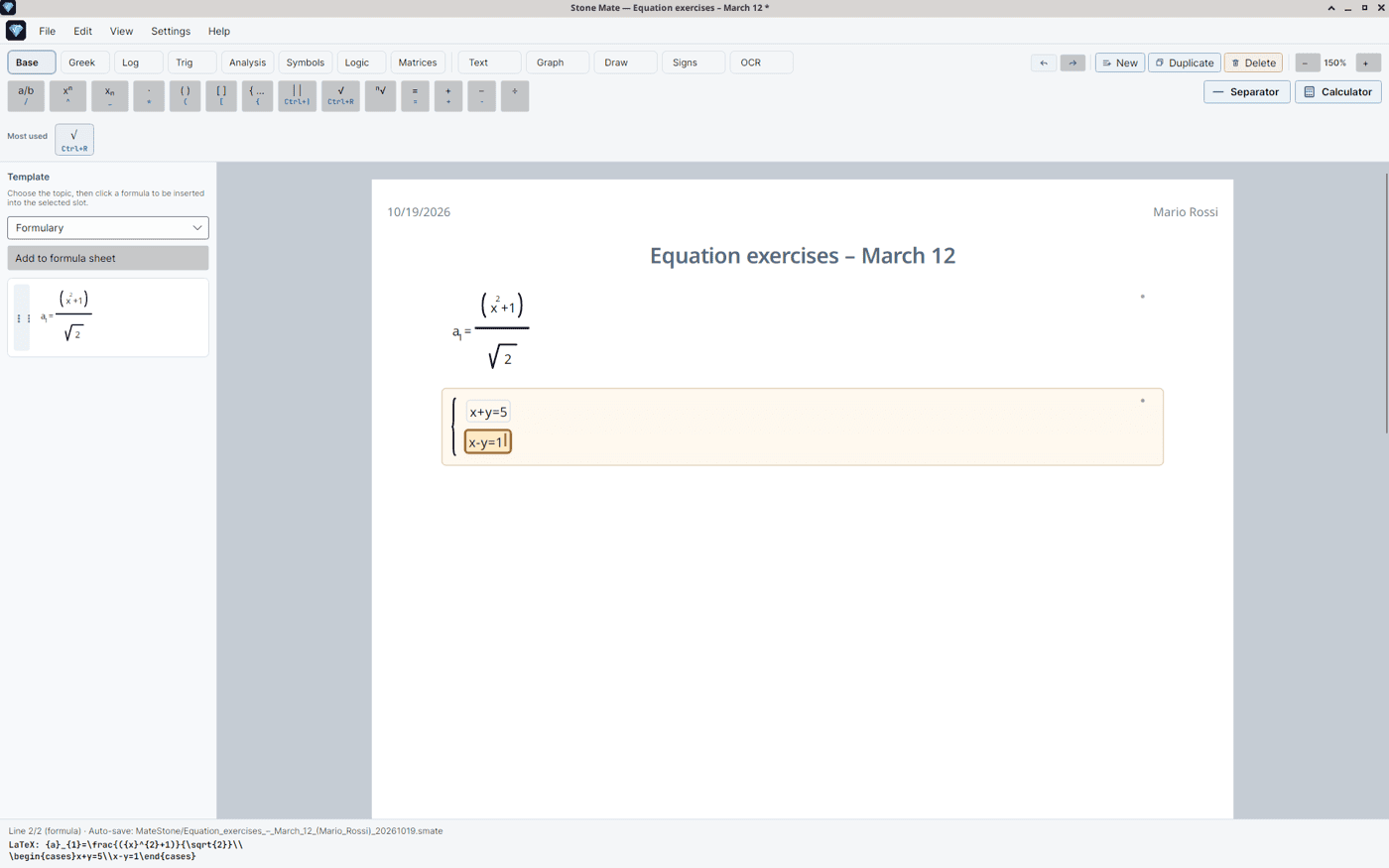
A system (brace)
{
Use ↑ and ↓ to move from one equation to the other
Equals
=
A square root
Ctrl+R
Strike through a piece
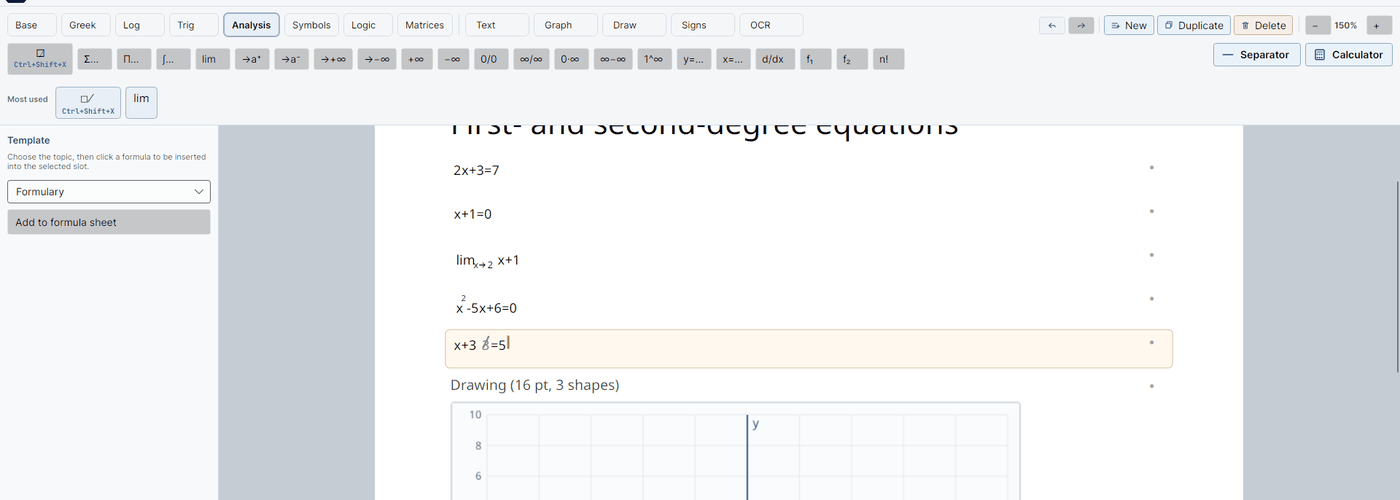
Ctrl+Shift+X or the x̸ button
Select the piece first, or strike the term on the left
A system with a brace: use ↑ and ↓ to move from one equation to the other.A term struck through to show a simplification (the □̸ button, or Ctrl+Shift+X).
Moving around inside a formula
A formula is made of slots. To move from one to another:
forward:Tab or the right arrow
back:Shift+Tab or the left arrow
inside a fraction:up / down arrow (numerator / denominator)
Analysissums, integrals, limits, derivatives (only so you can write them; the program does not evaluate them)
Symbols≤, ≥, ≠, ∞…
Logic∧, ∨, ⇒…
Matricessystems and matrices
Under those is the Most used row: the symbols you use most often. You can also call them with Ctrl+1 … Ctrl+9.
The Base tab and, under it, the Most used row.The Greek tab.The Log tab: logarithms and exponentials.The Trig tab: trigonometric functions.The Analysis tab: sums, integrals, limits, indeterminate forms, and derivatives to write down (Stone Mate does not evaluate them).The Symbols tab.The Logic tab.The Matrices tab: systems and matrices already set up.
Copy and paste
Copy (Ctrl+C): copies the selected text or formula.
Paste (Ctrl+V): if the clipboard holds text, it pastes it; if it holds an image with a formula, Stone Mate tries to recognize it; otherwise it inserts the image.
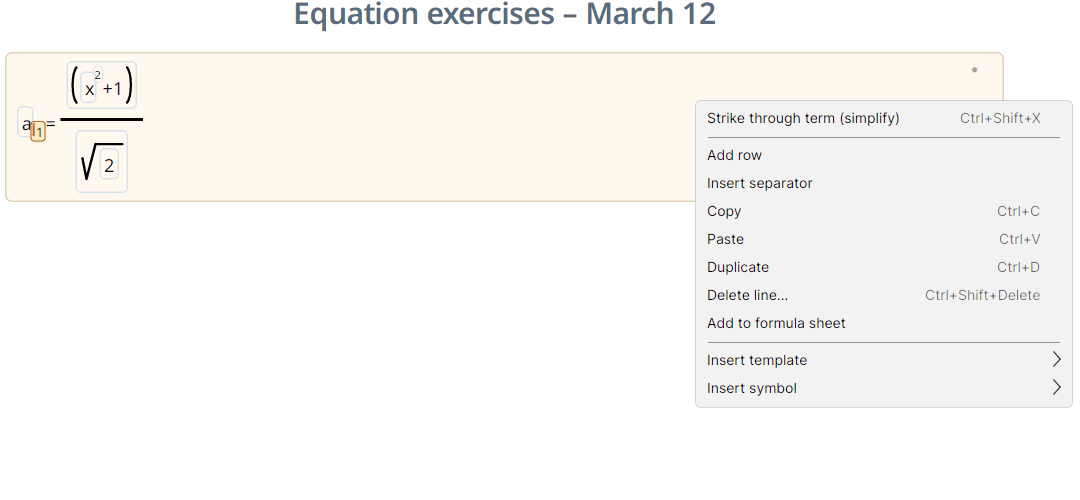
You can also drag an image onto an empty row. Right-click a formula to strike it through, copy it, or add it to the formula sheet.
Right-click a formula to strike it through, copy it, or add it to the formula sheet.Chapter 5
Adding text
Useful for titles, instructions, and explanations in words.
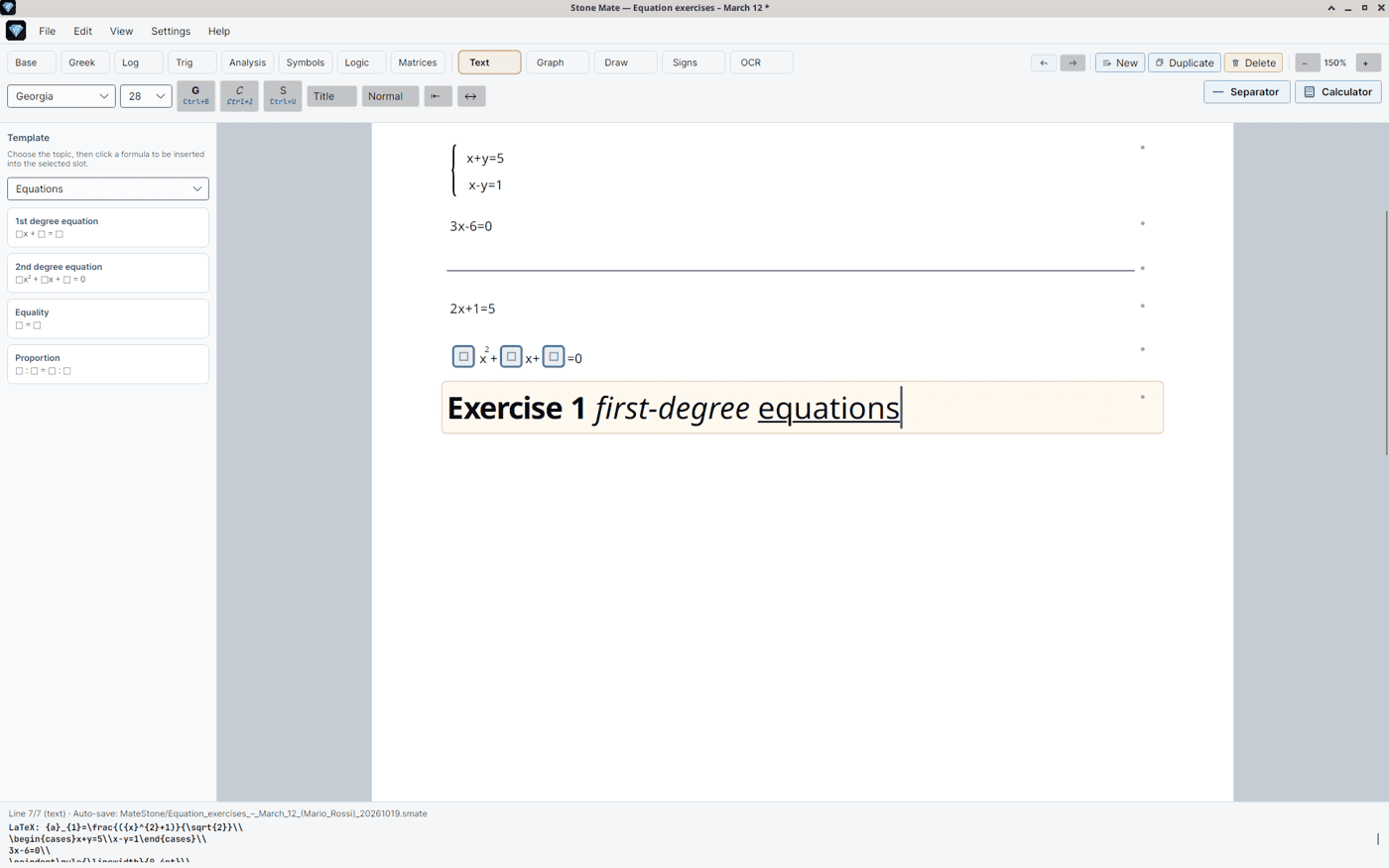
Press Text on the bar.
Write as you would in a word processor.
With Enter you start a new line inside the same text box.
Button / key
Effect
Bold button, or Ctrl+B
Bold
Italic button, or Ctrl+I
Italic
Underline button, or Ctrl+U
Underline
Font and size menus
Change the typeface and the size
Title / Normal
Large text or normal text
⇤ / ↔
Align left or center
Text mode: typeface, size, bold, italic, underline, Title, Normal, and alignment.
To go back to formulas: click a formula row, or press New.
Chapter 6
Ready-made formulas (templates)
On the left, the Templates panel (if you cannot see it: View → Template panel).
Choose a topic (Equations, Systems, Limits, Trigonometry…).
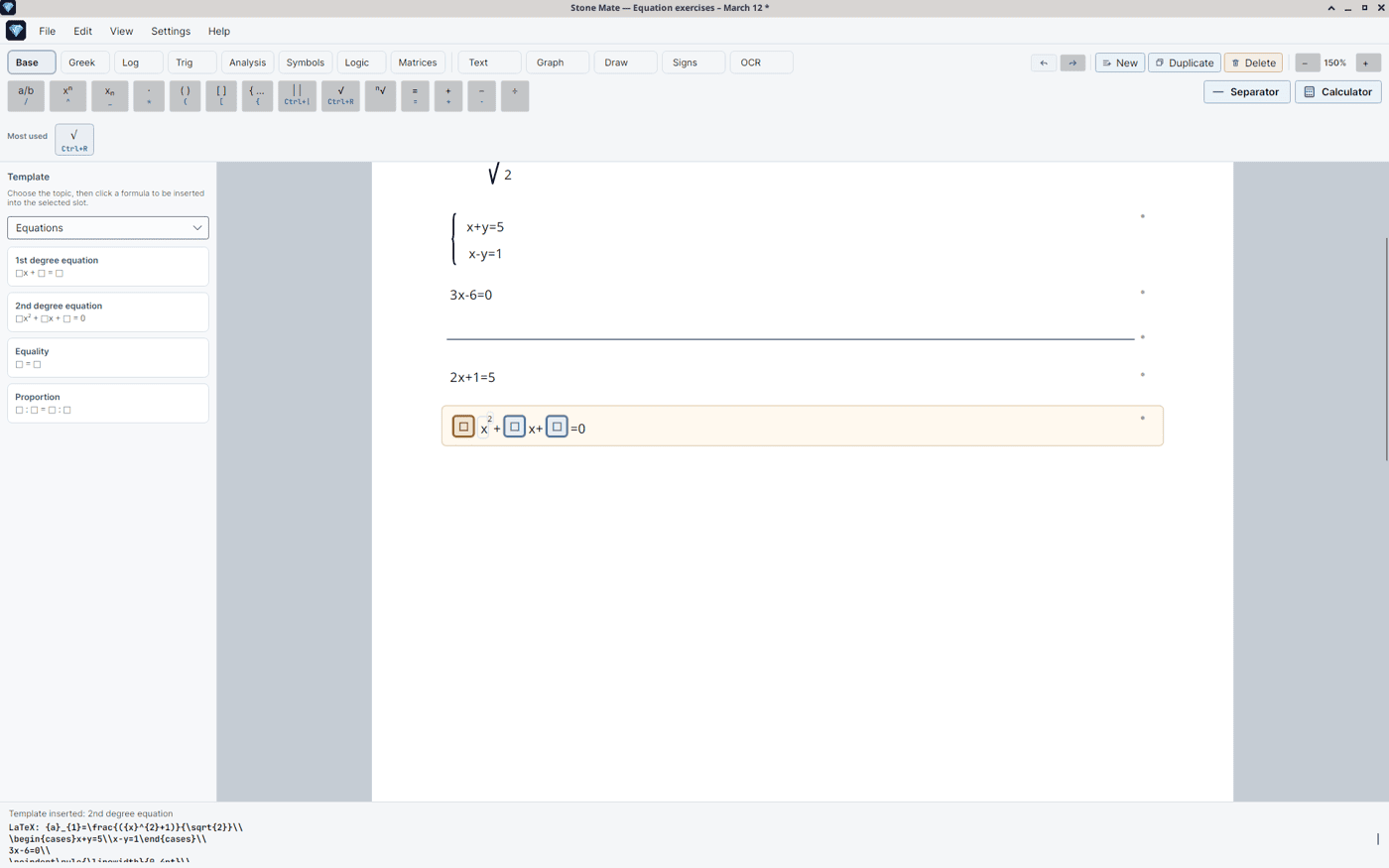
Click the formula you want: it appears on the page with slots to fill in.
Typical examples: a quadratic equation, a two-equation system, a limit as x tends to infinity, a trigonometric identity.
The Templates panel on Equations: the formula appears with slots to fill in.
Your formulary
If you have written a formula you want to reuse:
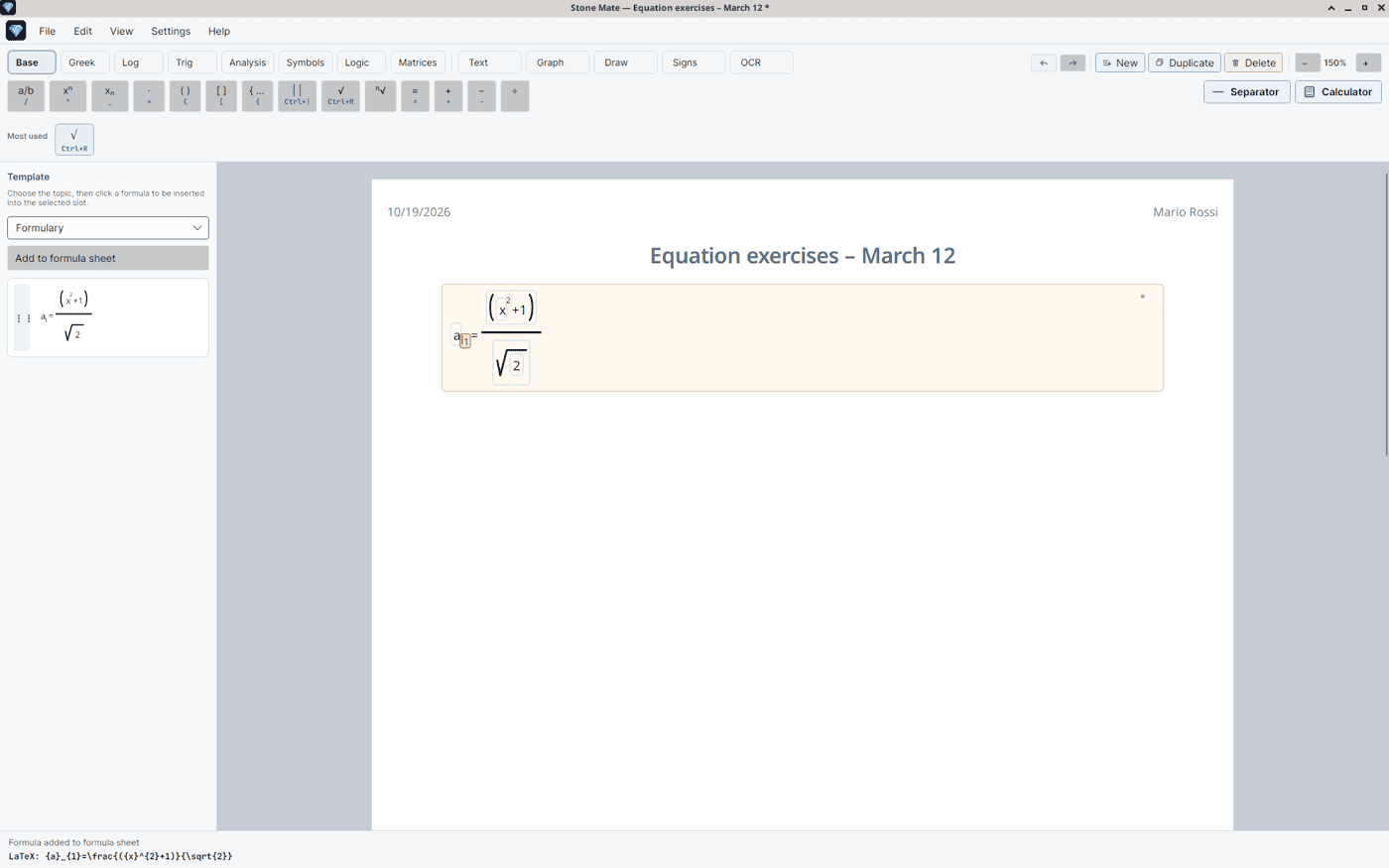
Right-click the formula → Add to formula sheet.
You will find it under the Formulary topic.
You can reorder the entries by dragging them in the list.
Your formulary: formulas saved with Add to formula sheet, under the Formulary topic.Chapter 7
Graphs (GeoGebra)
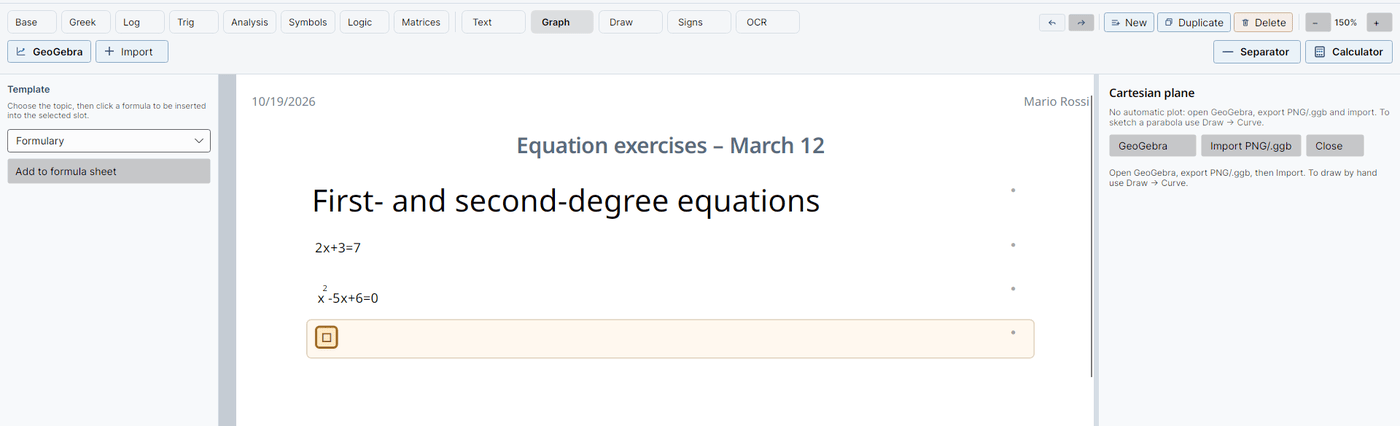
Graph mode opens the Cartesian plane panel on the right.
Important: Stone Mate does not plot a function from an expression on its own (y = f(x)). There is no automatic plot.
For a clean graph, use GeoGebra and then import it onto the page:
Press Graph (or View → GeoGebra).
In the panel, press GeoGebra: the site opens in your default browser.
Build the graph in GeoGebra.
Export a PNG image (or save a .ggb file).
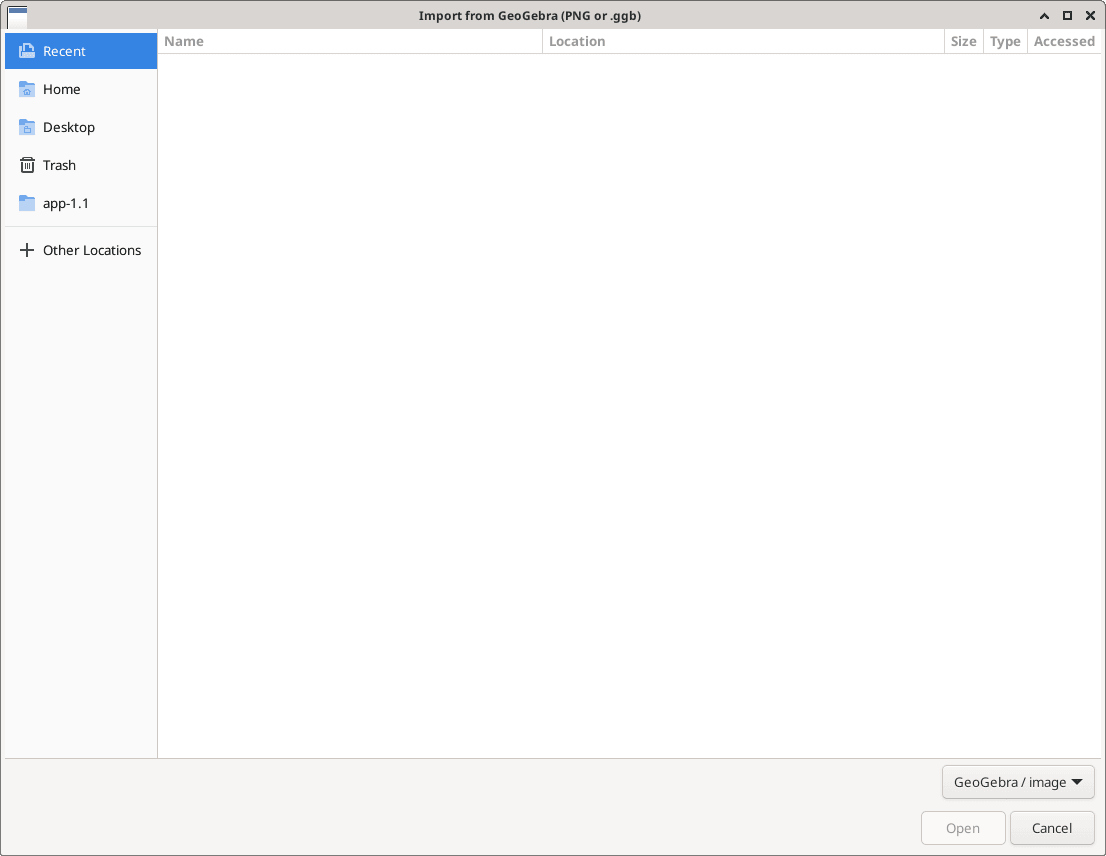
In Stone Mate press Import on the Graph tab, or Import PNG/.ggb in the panel, and choose the file: the graph appears on the page.
After the import the side panel closes and you return to writing.
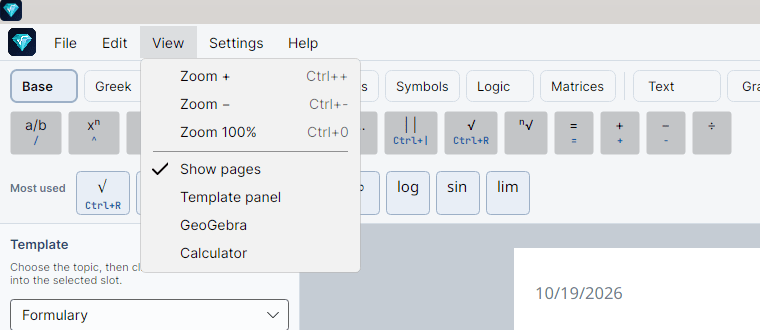
Graph mode opens the Cartesian plane panel. From here you open GeoGebra and import the image you exported. Stone Mate does not draw graphs by itself.Import PNG/.ggb: choose the PNG or .ggb file you exported from GeoGebra.The View menu: zoom, Show pages (on or off), Template panel, GeoGebra, Calculator.
Inserted graphs also go into Word, PDF, and printouts. For a parabola or another curve without an equation (a ready-made shape, or one drawn by hand), use Draw mode.
Chapter 8
Drawing on the plane (shapes, points, and intersections)
Draw mode — build figures on the Cartesian plane without showing formulas.
You can insert preset curves, segments, vectors, points, and mark intersections (axes, curves, lines) and values.
The panel opens on the right, with the tools and the plane (you can resize it by dragging the panel’s left edge). Above the plane there is a compact bar: on the left the Value / segment-or-vector label fields when needed; on the right the drawing Undo and Redo icons (no “History” title).
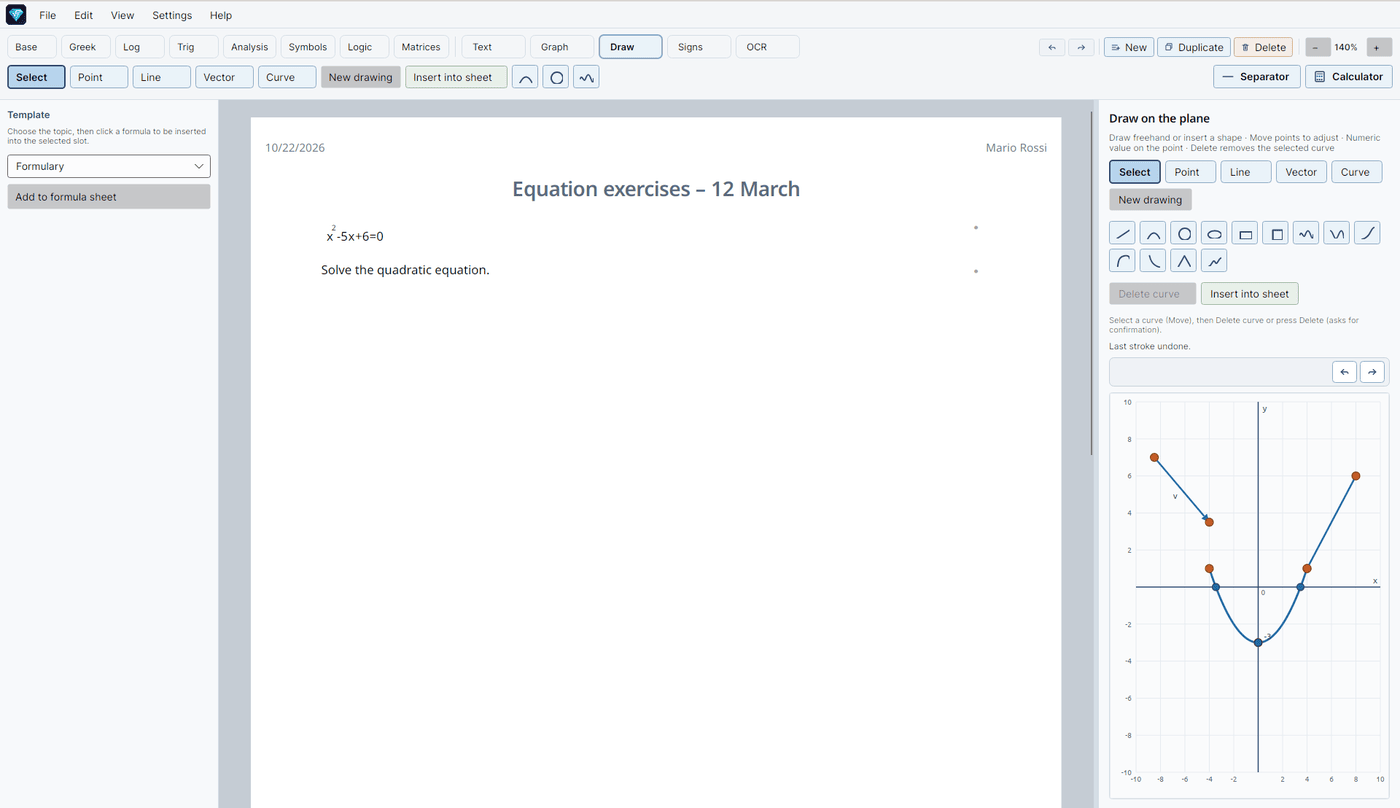
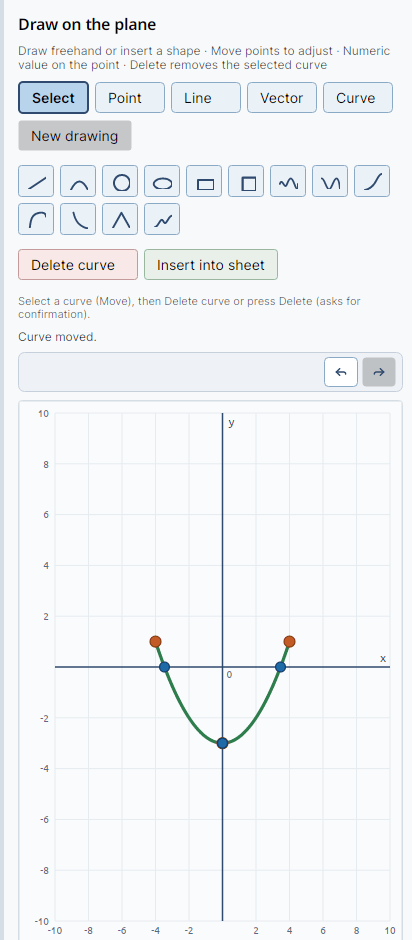
Draw mode: Select, Point, Line, Vector, Curve, and the shape icons, with the plane on the right.
What you can do
choose a ready-made shape from the icons (line, parabola, circle, …) — later inserts are offset so they do not stack on top of each other
or trace freehand with Curve (it recognizes the closest school shape)
draw segments (Line, two clicks) and vectors (Vector, two clicks, with an arrowhead)
place figures and points: drag control points, segments, vectors, or whole curves
define points and intersections and assign a Value (for example −1, 2) or a label on a segment/vector
Stone Mate does not show or ask for y = f(x): you work on the shape and the points, by hand.
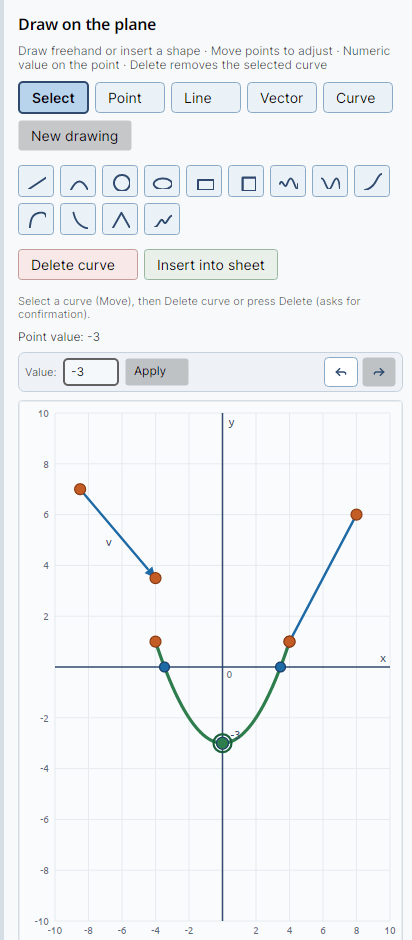
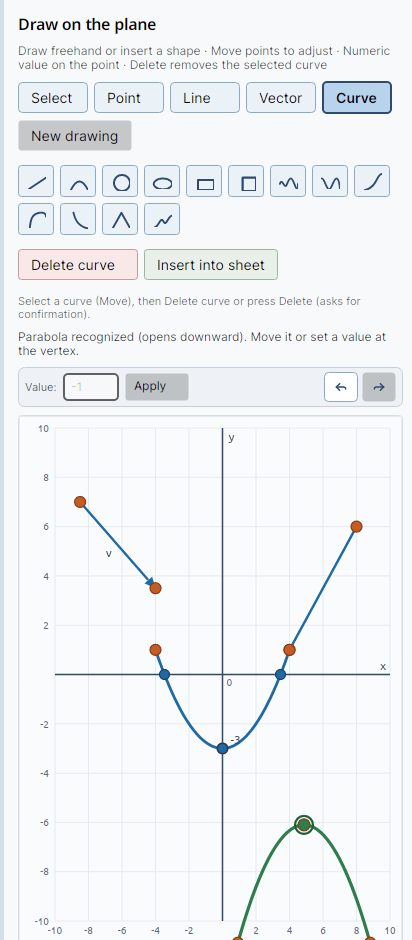
A ready-made shape from the icons. Move and reshape it by dragging the control points.Select a point, type a Value, and press Apply: the value appears next to the point.With Curve you trace freehand: the stroke is recognized as a school shape and redrawn cleanly.
A typical sequence
Press Draw.
Choose a shape (icons), Line / Vector, or Curve freehand.
With Select (or a long click / drag on the figure), move points and curves until the position is right.
Click the points or the intersections (blue dots) and assign the numeric Value (or the segment/vector label) with Apply.
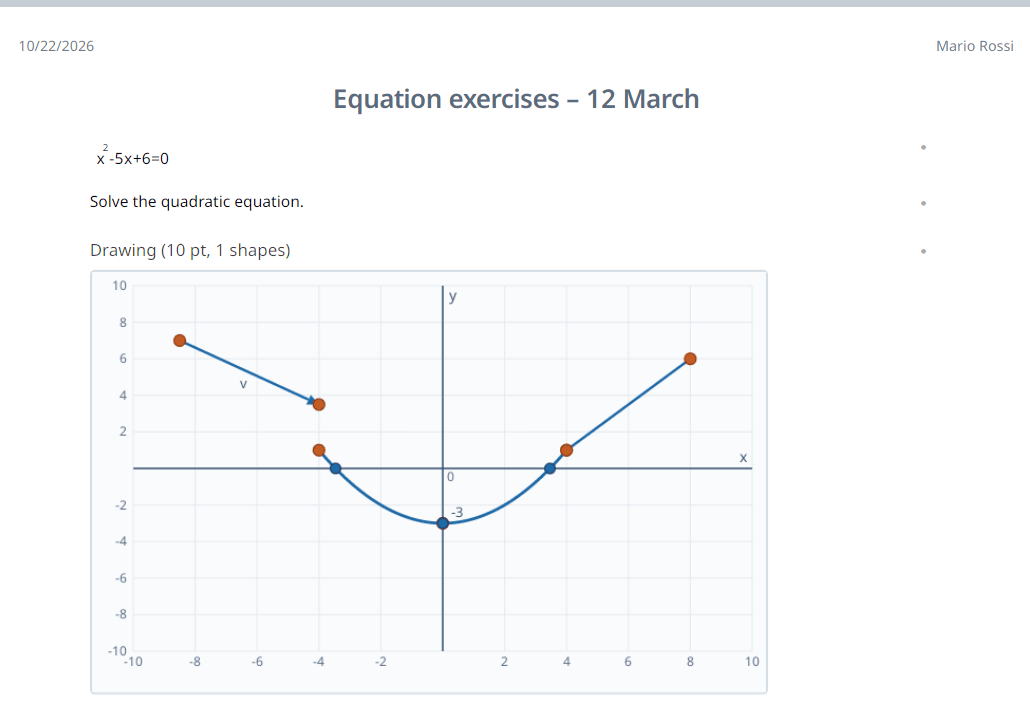
Press Insert into sheet: the drawing becomes an image in the document and the panel closes.
Insert into sheet turns the drawing into an image in the document.
Tools
Tool
What it does
Select
Select and drag points, segments, vectors, or whole curves. It also turns on automatically in some gestures (see below)
Point
One click = a point (you can then give it a value, for example −1)
Line
Two clicks = a segment. The second click can finish on an existing point (including one from another segment)
Vector
Two clicks = a vector (segment with an arrowhead); you can label it like lines
Curve
Drag freehand: the stroke is recognized as a school shape and redrawn cleanly. If it is not recognized, it stays as a freehand stroke
Shape icons
Palette of preset curves and figures (icons only, no title): Line, Parabola, Circle, Ellipse, Rectangle, Square, Sine, Cosine, Exponential, Logarithm, Hyperbola, Absolute value, Cubic. Each later insert is offset so shapes do not stack
Undo / Redo
In the bar above the plane: undo or redo the last drawing action (also Ctrl+Z / Ctrl+Y / Esc while Draw is active)
New drawing
Clears the whole drawing (after you confirm)
Delete curve
Deletes the selected curve and its points (after you confirm). The Delete key does the same when a curve is selected
Insert into sheet
Puts the drawing in the document (as an image) and closes the panel
Clicks, selection, and drawing (Line / Vector)
First click of a line or vector: you start the stroke. Until the second click, nothing else is selected — every click is for finishing the segment.
Short click on an existing point: starts or finishes the line/vector on that point (does not switch to Select).
Long click (or a clear drag) on a segment or curve, when you are not finishing a stroke: switches to Select so you can move the figure.
Click on a curve with other tools (for example Point): selects/moves the curve.
Clicking the active create tool again (Point, Line, Vector, Curve) toggles back to Select.
Position, values, and intersections
Every shape has control points (vertex, ends, centers…): drag them to move and resize the figure on the plane.
A click on a point (without a long drag) opens the Value field in the bar above the plane — type for example −1 and press Apply (or Enter).
On a selected segment or vector you can set a label (same bar).
If you drag a point to move it, the Value box does not open.
Blue dots at intersections:
curves with the axes and between curves;
lines/vectors with the axes, with each other, and with curves (including several points for the same pair, e.g. a chord and a circle).
If you move a line or a curve, the intersection dots update and follow the crossing.
Tip: to delete a shape, select it (click the curve) and use Delete curve or Delete.
Chapter 9
Sign chart
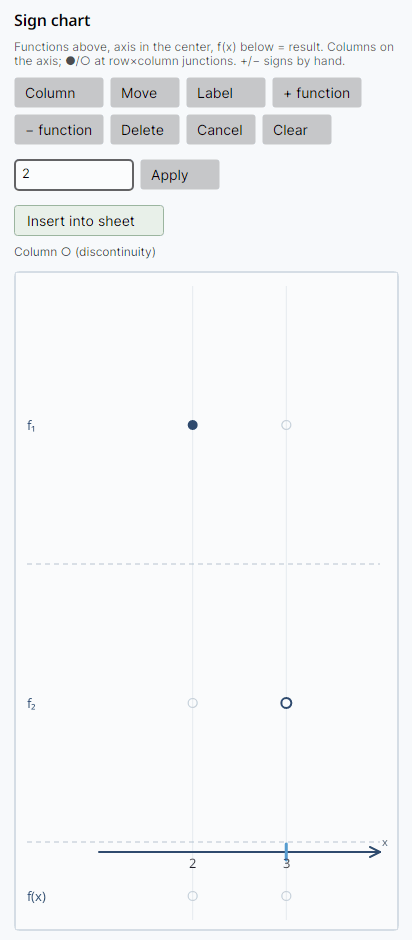
Signs mode — draw the sign-chart table or axis by hand. The panel with the layout opens on the right (you can resize this panel too).
Important: Stone Mate does not work out the signs for you. It gives you the layout to fill in by hand.
The layout:
at the top, the functions (rows separated by a dashed line)
in the middle, the axis: the columns sit on the axis (numeric or symbolic labels, for example −2, 0, a)
underneath, the result f(x) (the continuous sign of the product)
The dots ● / ○ go at the row×column crossings (not on the axis):
● = a root (a zero)
○ = a discontinuity
absent = no symbol at that crossing
On the axis you only move and label the columns.
Tool
Use
Column
Adds a column on the axis; then edit the label and press Apply
Move
Drag the columns along the axis
Label
Edit the names (column or function); confirm with Apply
+ function / − function
Add or remove a function row
Click a row×column crossing
Cycles the dot ● / ○ / absent
Click the cells between columns
Cycles the signs + and −
Delete
Deletes the selected column (also with Delete)
Undo / Clear
Undoes the last change, or clears the whole chart
Insert into sheet
Puts the chart in the document and closes the panel
Signs mode: the sign-chart layout, for you to fill in by hand.Chapter 10
Taking a formula from a photo or the screen
OCR mode — “reads” a formula or some text from an image.
Button
When to use it
From File…
You have a PNG/JPG photo or a PDF
From clipboard
You have already copied an image
From screen…
You want to select a rectangle on the screen
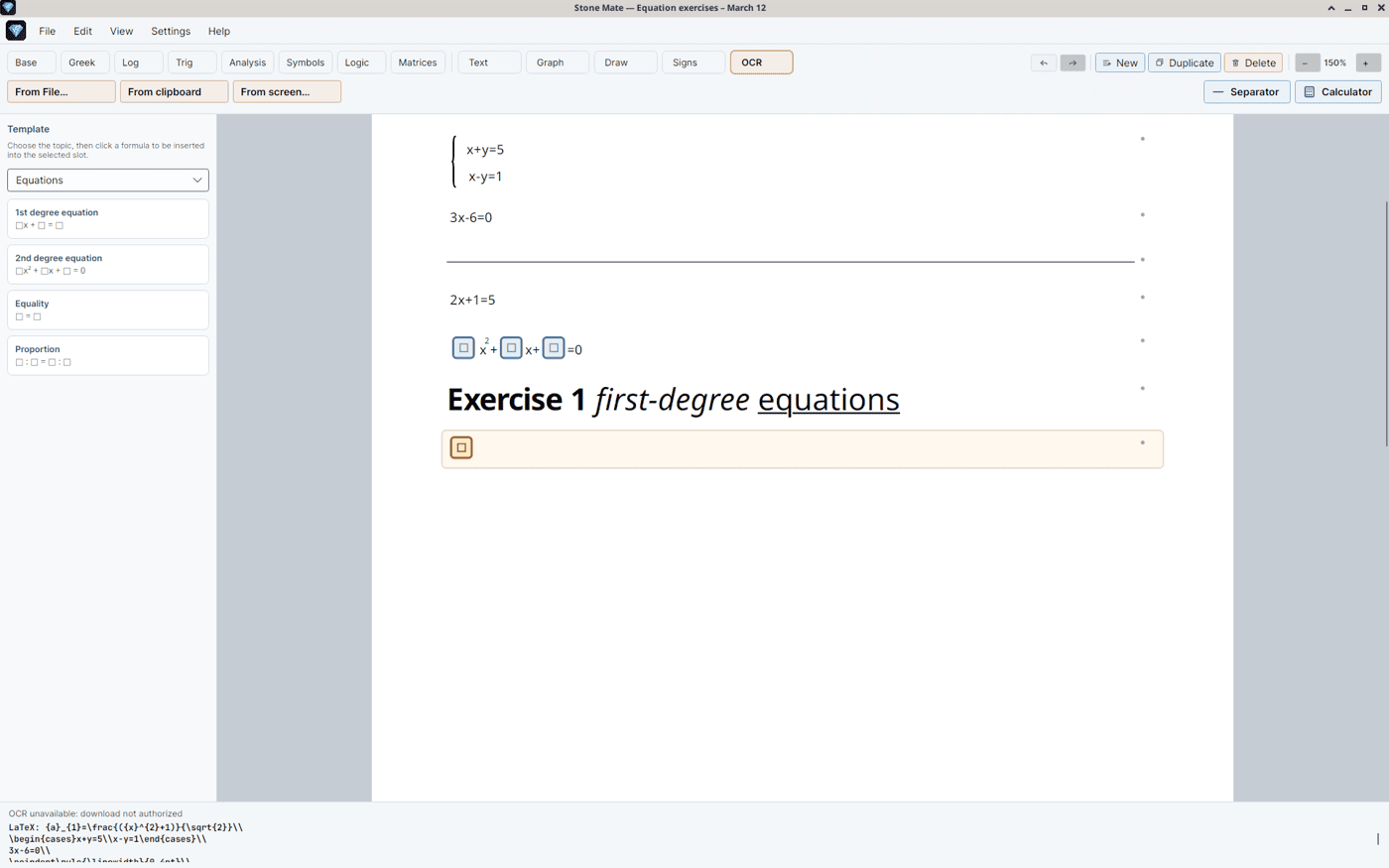
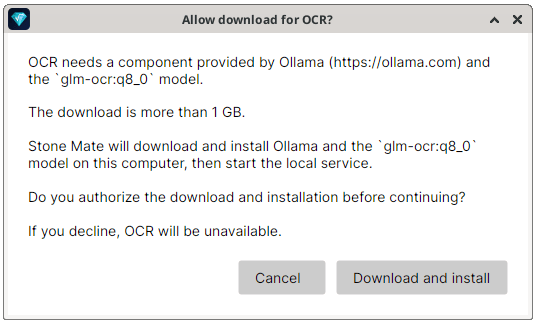
Opening the OCR tab brings up Allow download for OCR? at once. The bar shows From File…, From clipboard, and From screen….
From a file
Choose the image or the PDF.
If it is a PDF, say which page to start from and which to end on.
Wait a moment: an editable formula appears, or a text row.
From the screen
Press From screen….
Drag a rectangle over the area you want to capture.
When you release, recognition starts.
What it needs in order to work
Recognition uses a helper program on the computer (usually Ollama with a dedicated model).
If it is missing, Stone Mate asks permission as soon as you open the OCR tab, before downloading and installing it (the download can be over 1 GB).
During the download you see the progress in the bottom bar.
If you do not allow it, or something is not ready, a message appears at the bottom: you can still write by hand.
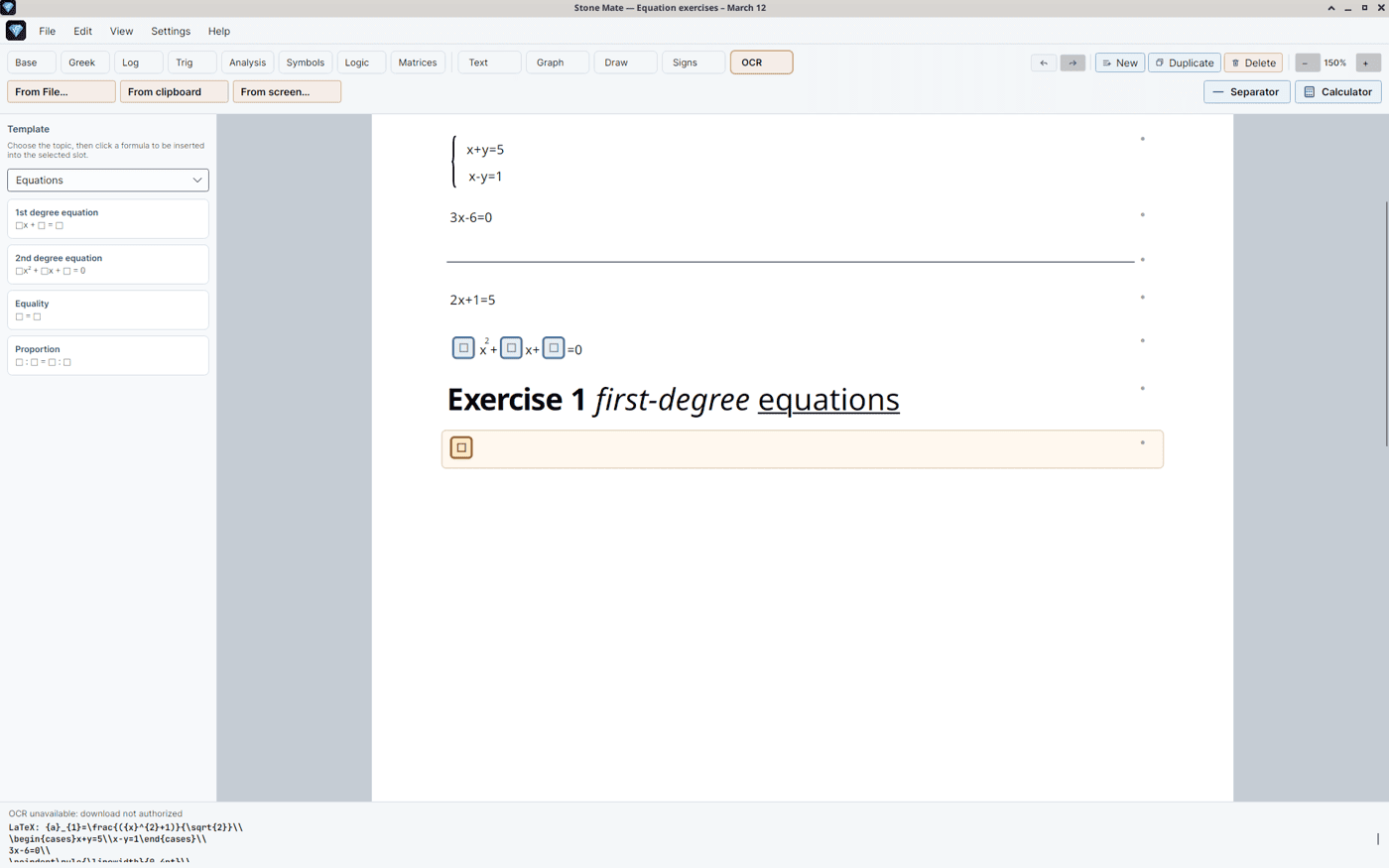
If the OCR helper is missing, Stone Mate asks permission before downloading it (over 1 GB).The same screen as the OCR tab above. The status bar reads “OCR unavailable: download not authorized.”
If the result is not perfect, correct the slots as you would in a normal formula.
Chapter 11
Zooming and seeing the pages
What
How
Zoom in / zoom out
Zoom + / Zoom −, or Ctrl++ / Ctrl+−, or Ctrl + the mouse wheel
Back to 100%
Ctrl+0
See where the page ends
View → Show pages (dashed lines, as in a printout)
The computer’s calculator
View → Calculator
The full list of commands
Help → Quick commands…
About the program
Help → About Stone Mate… (version, email, license, link to the site)
With Show pages, the sheet marks the printed pages.Help → Quick commands…: the full list of shortcuts.Chapter 12
Appearance, language, and shortcuts
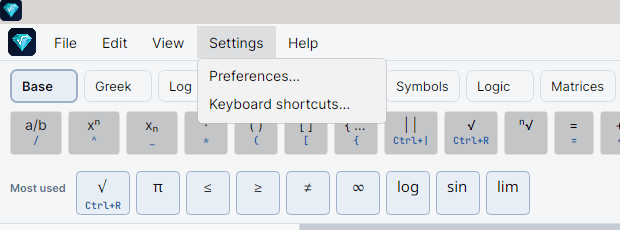
The Settings menu: Preferences… and Keyboard shortcuts….
Preferences (appearance and language)
Settings → Preferences…
Here you can:
choose the interface language
change the default character size
change the space between one row and the next
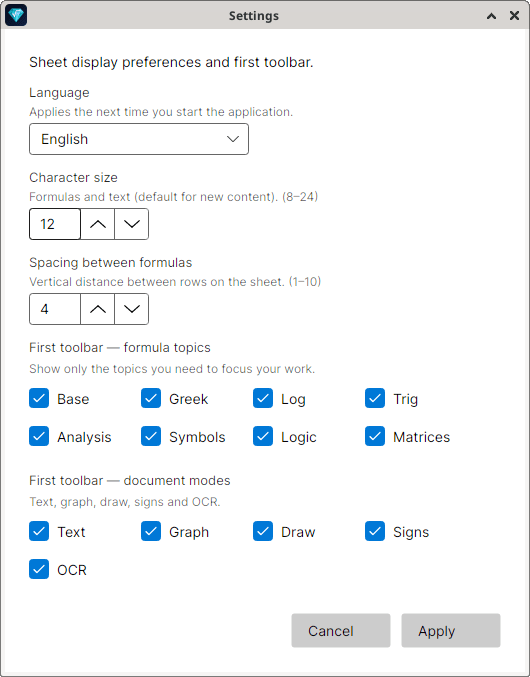
choose which buttons to show on the bar (hide the ones you do not use)
Keyboard shortcuts
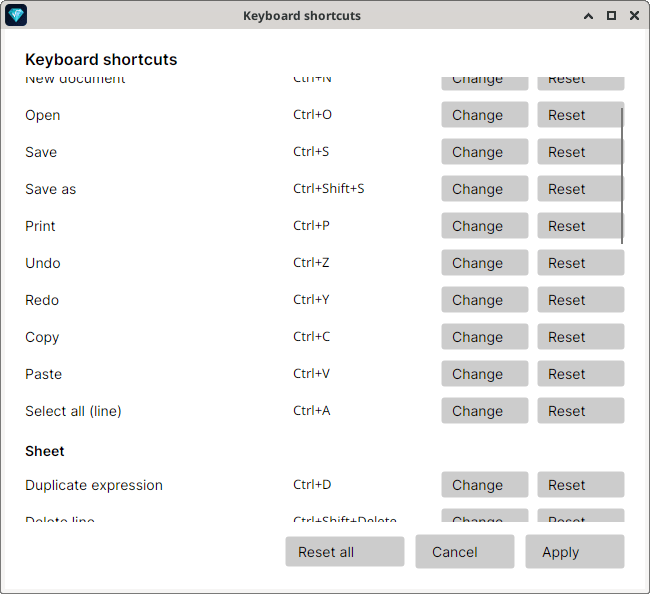
Settings → Keyboard shortcuts…
You can change the Ctrl / Alt / Shift combinations (document, page, text, square root, strike-through, Most used slots Ctrl+1…9, and so on).
The list shows the action, the current key, Change, and Reset.
With Change, press the new combination on the keyboard (you need at least one modifier: Ctrl, Alt, or Shift).
If that combination is already used by another command, Stone Mate tells you, and you can reassign it (it is taken away from the other command) or cancel.
Reset all goes back to the factory values.
The formula characters (/, ^, _, *, (, [, {, =) are not customizable: they follow the keyboard layout.
In the menus and in Quick commands the keys are shown as Shift and Delete (on an Italian keyboard those keys are printed Maiusc and Canc).
Changes are kept from one session to the next. After you apply them, Help → Quick commands… lists the updated keys as well.
Settings → Keyboard shortcuts…: for each command you see the current key, Change, and Reset.
Interface language
In the same Preferences window you will find the Language menu. You can choose:
Option
Effect
System
Use the computer’s language (if it is not one of the supported languages, the interface is in English)
Italiano
Interface in Italian
English
Interface in English
Français
Interface in French
Español
Interface in Spanish
The language you choose applies the next time the program starts: after you confirm, close Stone Mate and open it again. Menus, messages, and dialogs will use the language you set.
The other preferences (characters, spacing, bar) stay saved and apply immediately, or in later sessions, as usual.
Settings → Preferences…: language (from the next start), character size, space between rows, and the buttons on the first bar.Chapter 13
Useful keys (a reminder)
These are the defaults. If you changed them in Settings → Keyboard shortcuts…, use the new ones (or open Help → Quick commands… again).
Document
Action
Key
New
Ctrl+N
Open
Ctrl+O
Save
Ctrl+S
Save as
Ctrl+Shift+S
Print
Ctrl+P
Undo
Ctrl+Z
Redo
Ctrl+Y
Copy / Paste
Ctrl+C / Ctrl+V
Duplicate row
Ctrl+D
Delete line
Ctrl+Shift+Delete
Move line
Alt+↑ / Alt+↓
Formulas and text
Action
Key
Fraction / power / subscript
/^_
Square root
Ctrl+R
Strike-through
Ctrl+Shift+X
Multiplication ·
*
“Most used” symbols
Ctrl+1 … Ctrl+9
Bold / italic / underline
Ctrl+B / Ctrl+I / Ctrl+U
Draw and Signs
Action
Key / gesture
Undo / redo on the drawing
Ctrl+Z / Ctrl+Y (while Draw is active; also the icons above the plane)
Undo last drawing gesture
Esc (while Draw is active; if there is nothing to undo, leaves the mode)
Delete the selected curve or column
Delete (with the Draw or Signs panel open)
Confirm a Value / segment / column label
Apply, or Enter in the box
For the full list (with the keys you are using now): Help → Quick commands…. To change them: Settings → Keyboard shortcuts….
Chapter 14
If something goes wrong
Problem
What to try
I cannot remember how to make a fraction
Type the numerator, then /, then the denominator — or use the a/b button on Base
I cannot see a tab (for example Matrices)
Settings → Preferences and turn that item back on in the bar
A shortcut no longer does what it used to
Settings → Keyboard shortcuts…: check whether you reassigned it, or use Reset / Reset all
I want to change Ctrl+R (or another Ctrl/Alt shortcut)
Settings → Keyboard shortcuts… → Change, then press the new combination
I changed the language and nothing happened
Close Stone Mate and open it again: the language applies at the next start
 Stone Mate
![The tab bar with Base active; buttons a/b (/), xⁿ (^), xₙ (_), · (*), ( ), [ ], { …, | | (Ctrl+|), √ (Ctrl+R), ⁿ√, =, +, −, ÷; on the Most used row the lim and strike-through □̸ (Ctrl+Shift+X) buttons.](/assets/img/en/scrivere-formula_10_scheda-base-piu-usati.png)






![The Matrices tab active, with { 2 eq, { 3 eq, { 4 eq, ( ) 2×2, ( ) 3×3, [ ] 2×2, [ ] 3×3, ( ) 2×3, ( ) 3×2; on the Most used row √ (Ctrl+R), π, ≤, ≥, ≠, ∞, log, sin, lim.](/assets/img/en/scrivere-formula_10h_scheda-matrici.png)